How it works
Two of your devices, one meeting. Here's what each one does.
Host The laptop that sits in the meeting. It runs the extension and shows up to the meeting as a camera and microphone called Join From Anywhere.
- Runs the Join From Anywhere extension in Chrome
- Stays in the meeting tab
- Shows the Away slate when your Remote is not live
Your camera and mic → Host
Meeting audio → Remote Encrypted between your devices. Only devices on your account can pair.
Remote The laptop you have with you. Its camera and microphone become yours in the meeting, and it plays the meeting back to you.
- Runs the same extension in Chrome
- Sends your camera and microphone
- Plays the meeting back to you
01
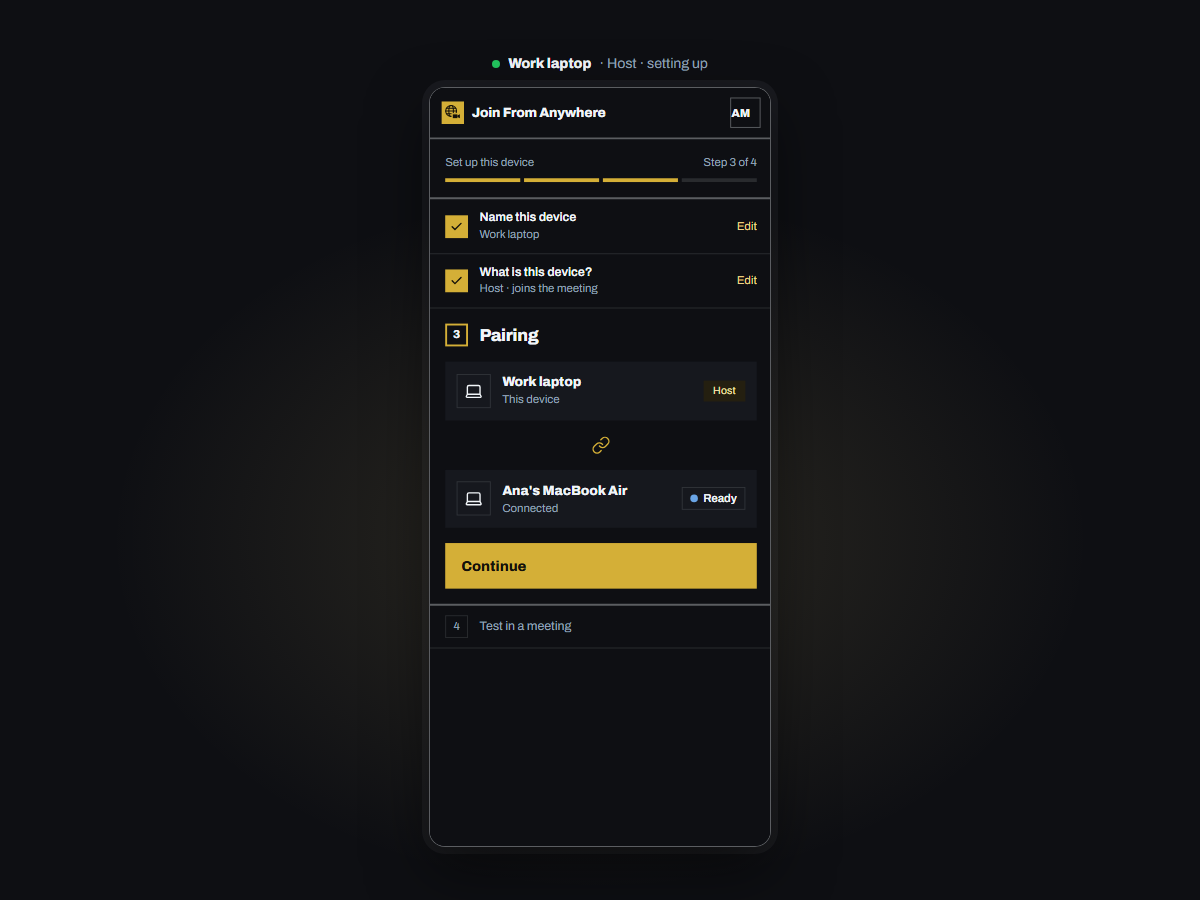
Install on your work laptop
Add Join From Anywhere from the Chrome Web Store on the laptop that will sit in the meeting. Sign in, name the device and choose Host.
- 1Name the device so you recognise it later.
- 2Choose Host: this laptop joins the meeting.
- 3Pairing finishes on its own once your Remote signs in.
 123
123 02
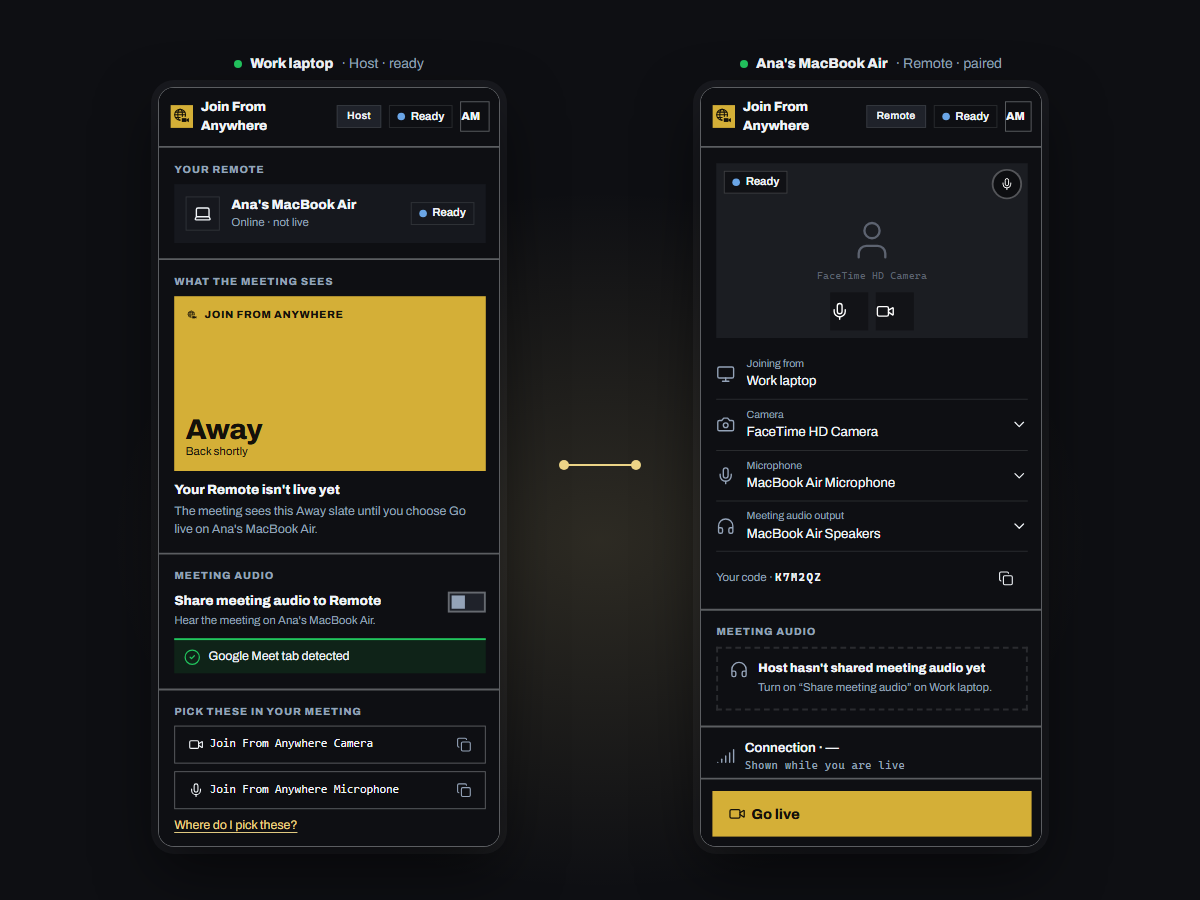
Sign in on your other laptop
Install the extension on the laptop you have with you and choose Remote. Sign in with the same account and the two pair on their own.
- 1Same account on both devices. Nothing to type across.
- 2Your Host shows up by name with its status.
- 3Pick the camera, mic and speaker you want to use.
 123
123 03
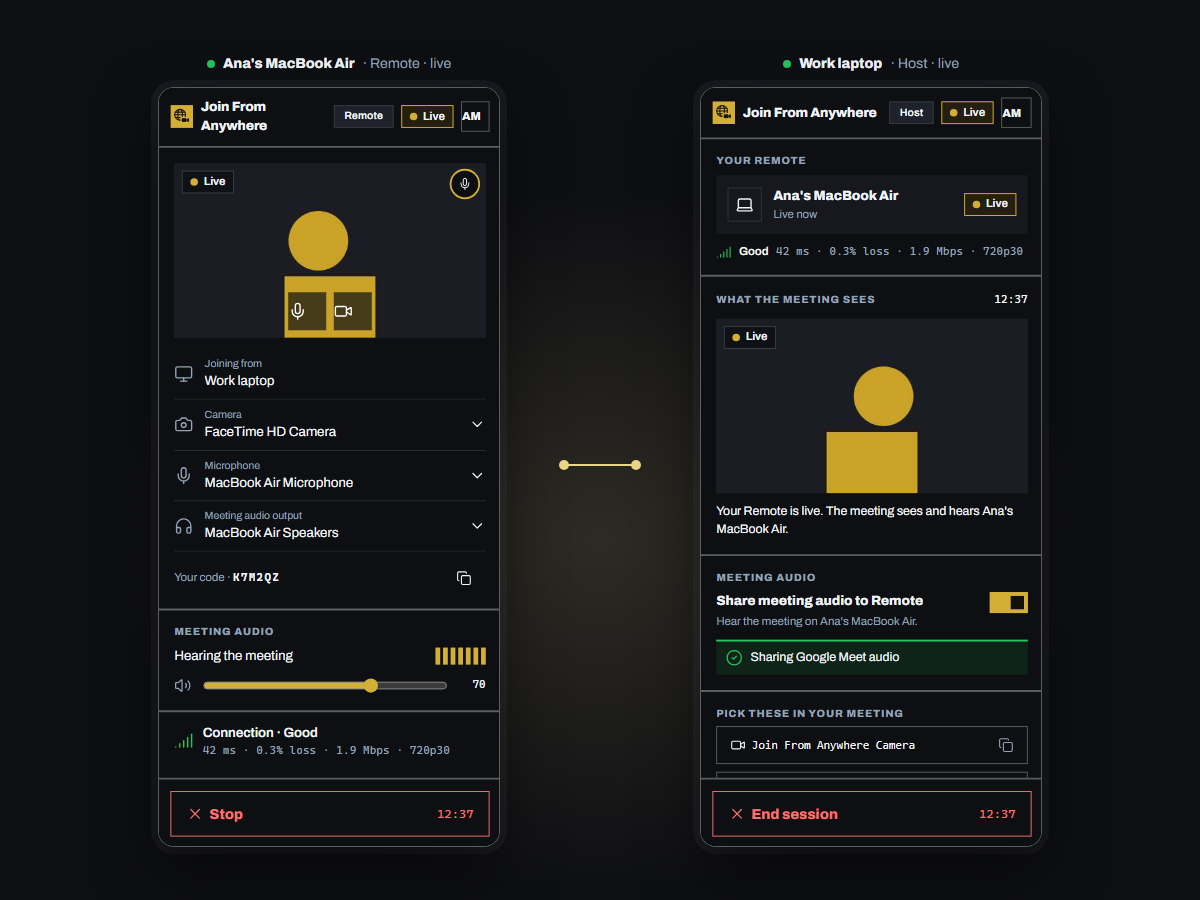
Go live, then pick Join From Anywhere
Choose Go live on your Remote. In the meeting on your Host, open the device settings and pick Join From Anywhere Camera and Join From Anywhere Microphone.
- 1Go live starts sending your camera and mic.
- 2The status changes to Live on both devices.
- 3Stop any time; the meeting sees the Away slate.
 123
123 Picking Join From Anywhere in your meeting
Google Meet 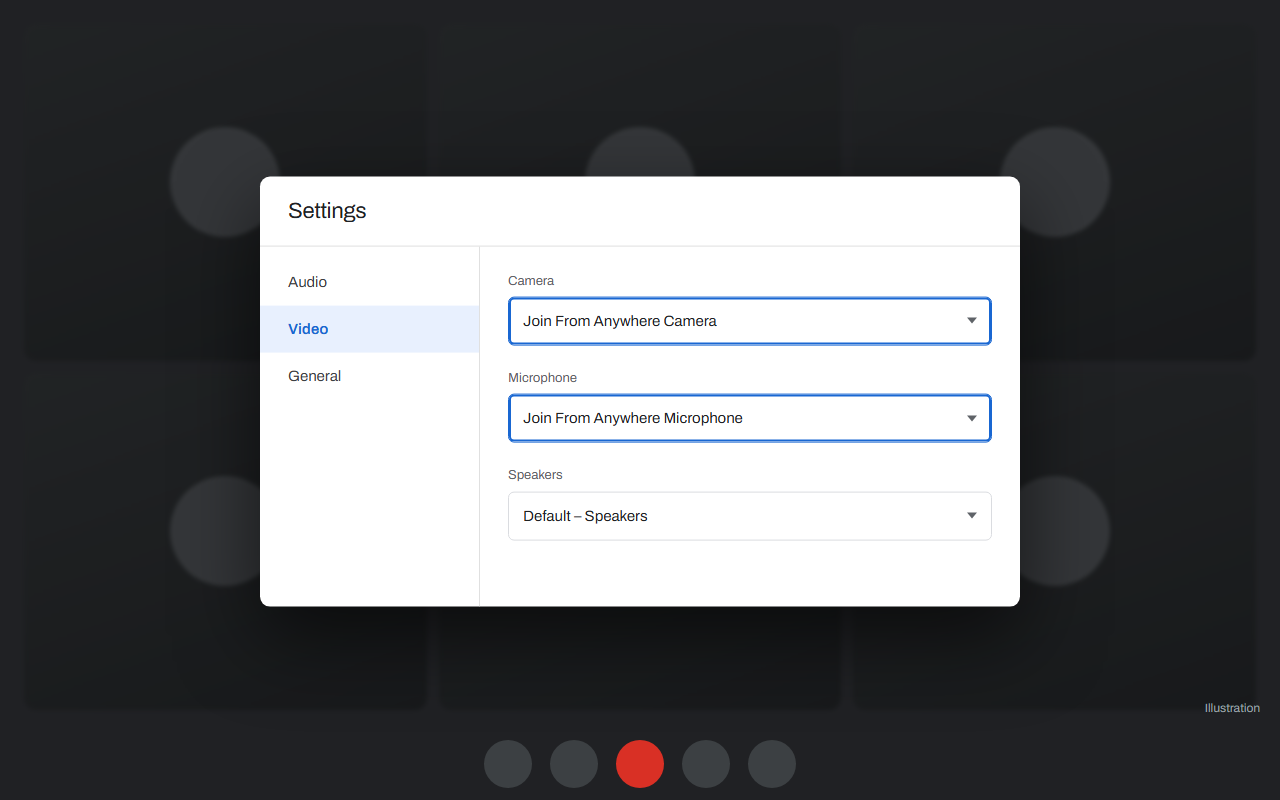
- Click ⋮ › Settings
- Open Video and Audio
- Choose Join From Anywhere for camera and microphone
Microsoft Teams (web) 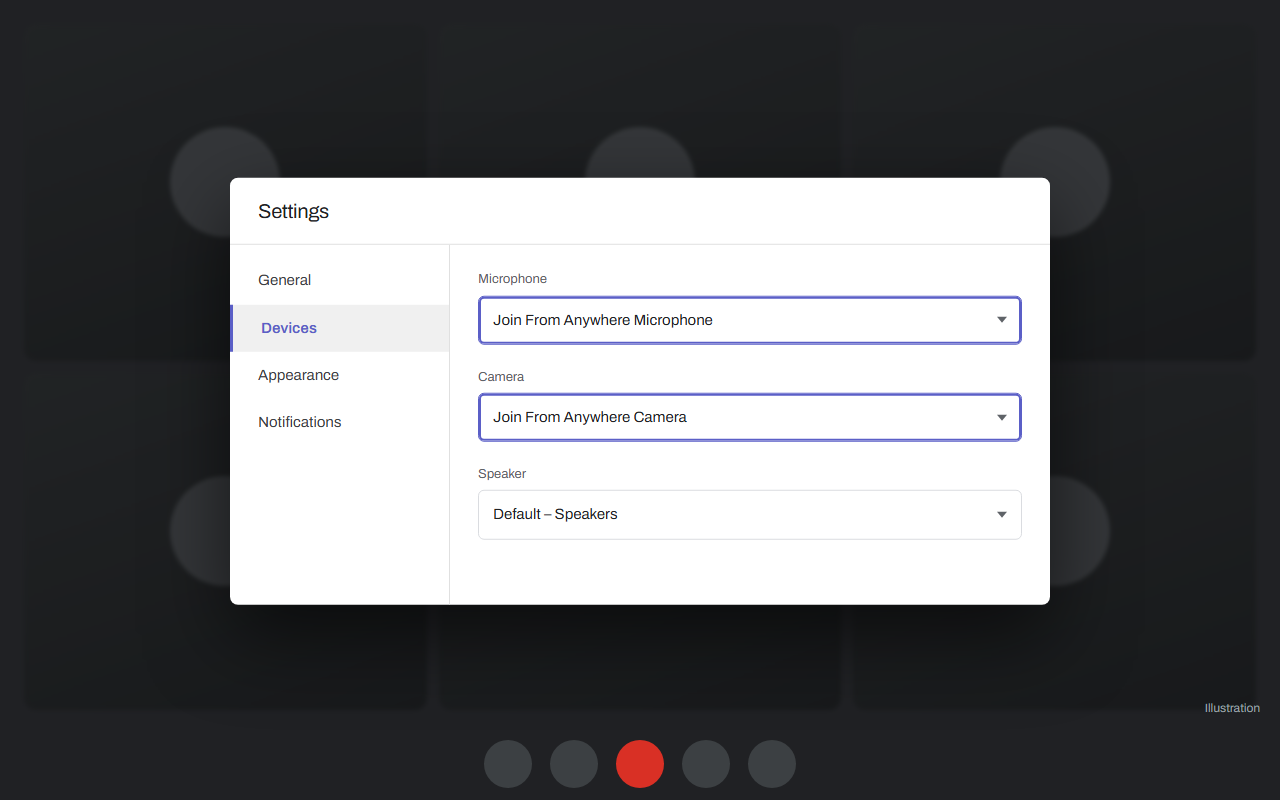
- Click ⋯ › Settings › Devices
- Set Camera and Microphone
- Choose Join From Anywhere in both
Zoom (web) 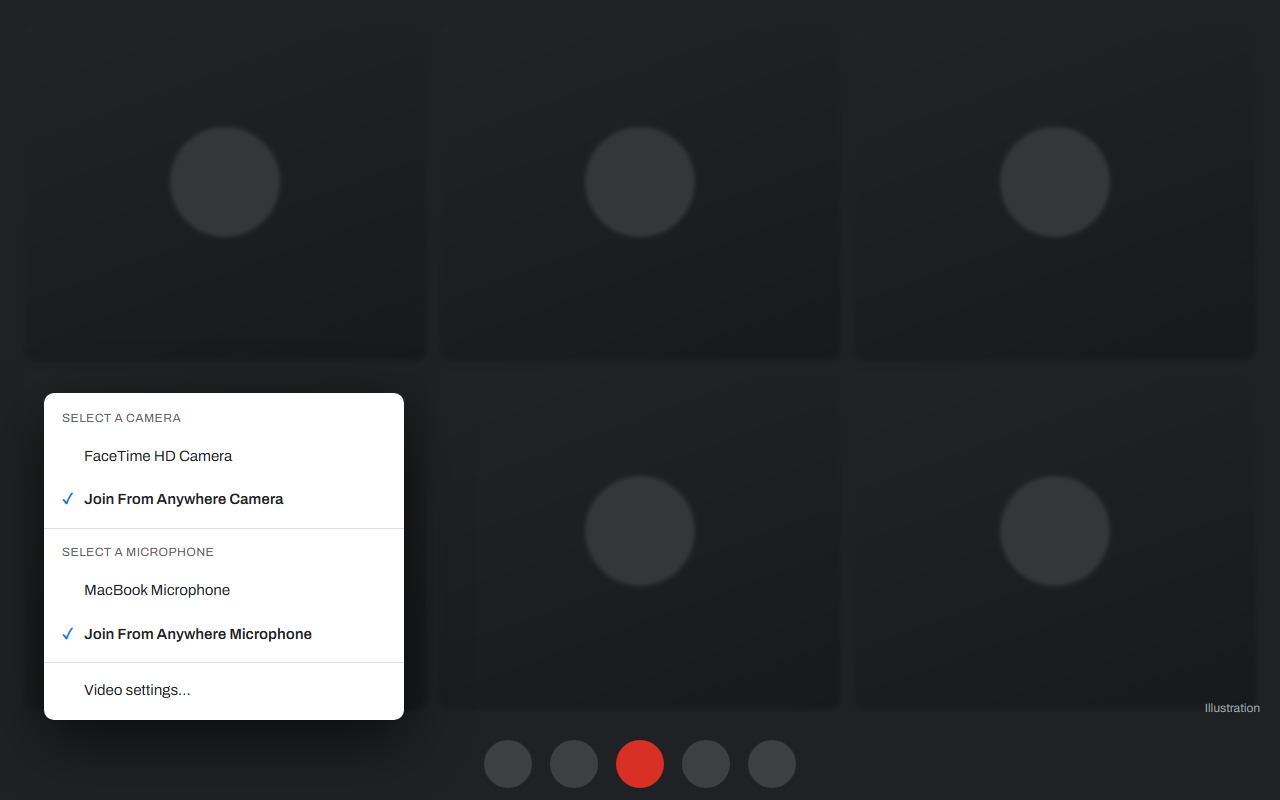
- Click the arrow next to Start Video
- Pick Join From Anywhere Camera
- Do the same next to Mute
When things change
You step away
Press Stop on your Remote. The meeting sees the Away slate until you go live again.
Your connection drops
Join From Anywhere reconnects on its own. Both devices show Reconnecting while it does.
You change laptops
Remove the old one in your dashboard, then sign in on the new one. Each slot holds one device.